Everything you need to set up VoiceWRX and keep it working. New here? Start with Getting started. Signed in, you can also replay the guided tour from Help on the caregiver site.
VoiceWRX is a comfort tool, not an emergency service
It is not a medical device, it cannot call 911, and alerts can be delayed or fail. Always keep another reliable way for the person to get help.
Getting started
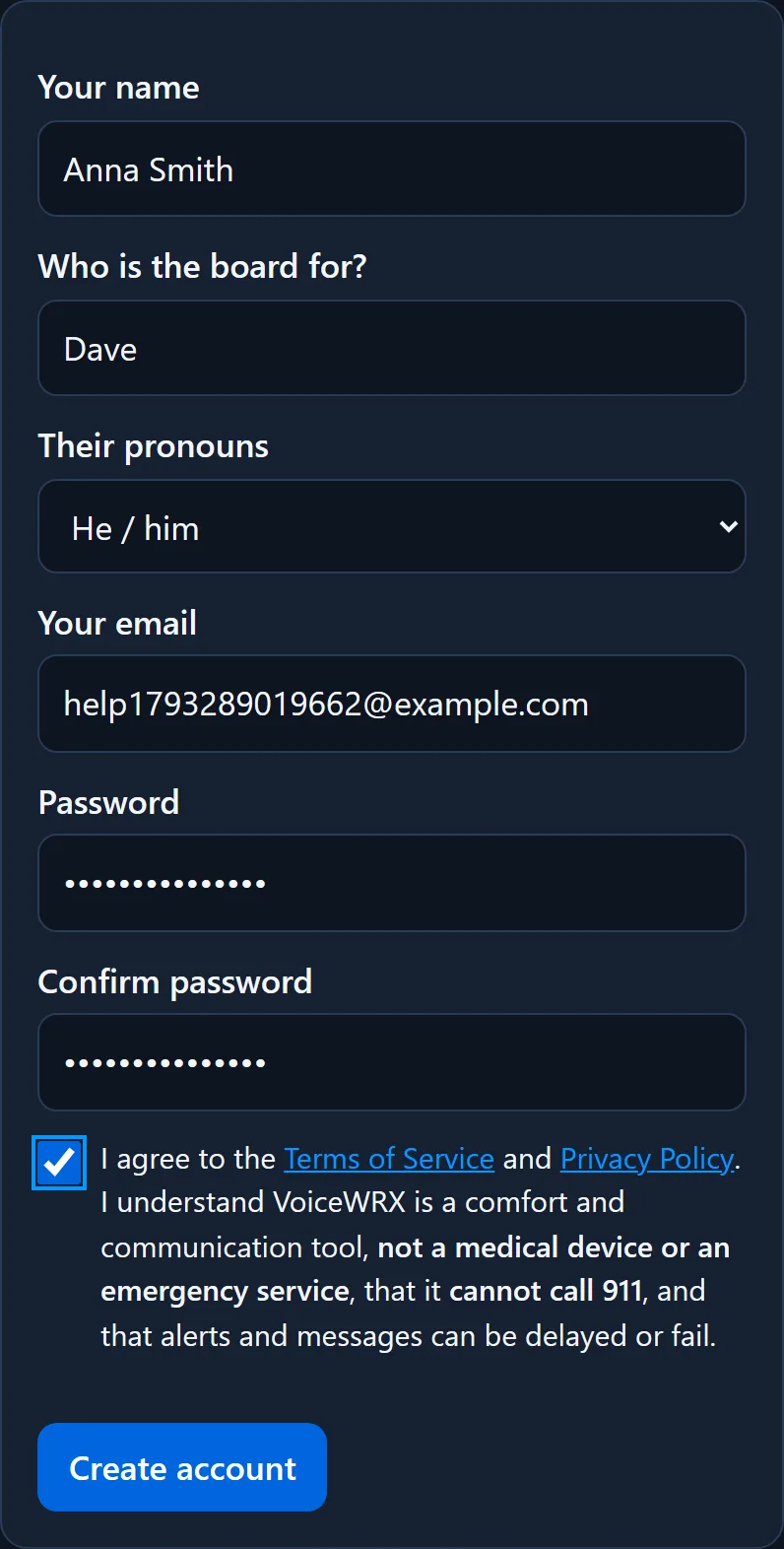
Create your account. At voicewrx.com/admin, enter your name, who the board is for and their pronouns, your email and a password, and agree to the Terms. Your first name is what the board says when you answer an alert ("Anna is on the way").
Confirm your email. Enter the 6-digit code we email you.
Set up the board as much as you like: tiles, pictures, voice. You can do this before paying.
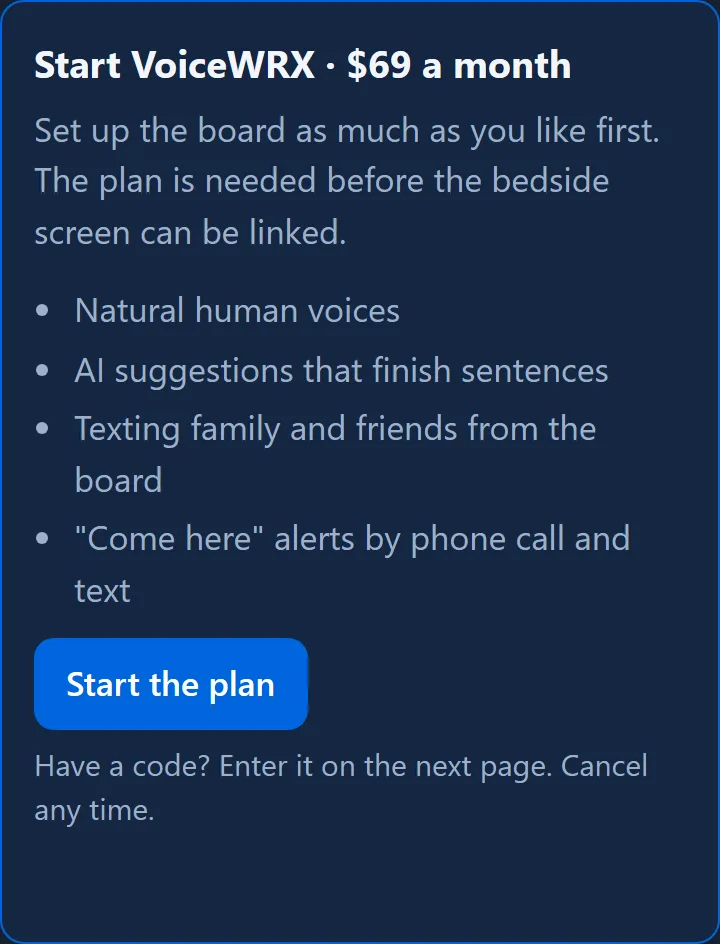
Start the plan ($69 a month; enter a code on the next page if you have one). The plan is needed before their screen can be linked.
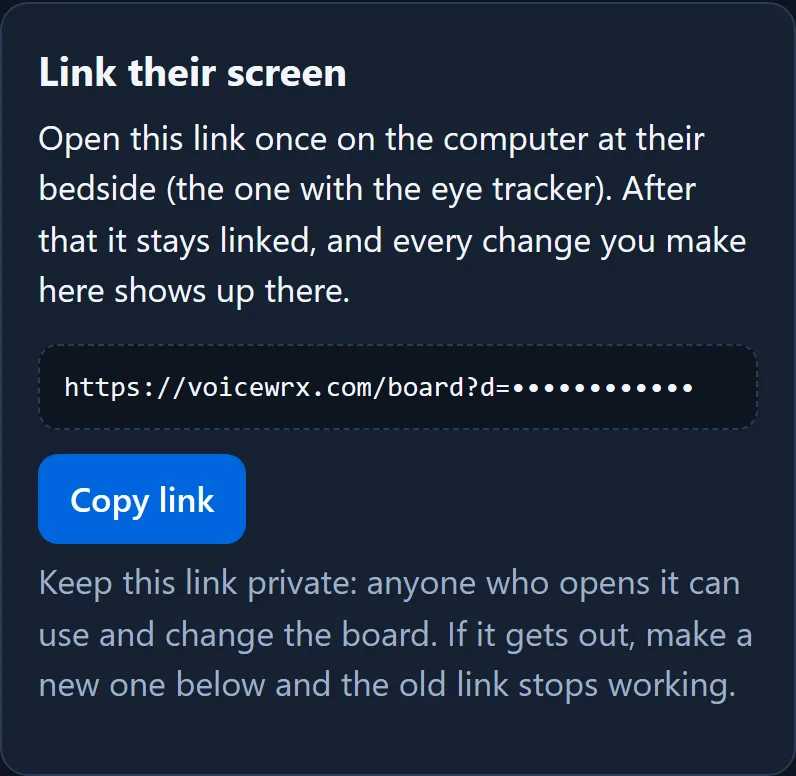
Link their screen. Open the screen link once on the computer at their bedside, usually inside the VoiceWRX Windows app. It stays linked after that.
Creating an account.The screen link appears after sign-up. Keep it private: anyone who opens it can use the board.
Lost the link, or think someone else has it? Make a New screen link on the board card. The old link stops working.
The VoiceWRX app for Windows
The app runs the board full screen at the bedside, starts by itself when the computer turns on, and is needed for a Tobii eye tracker.
On the caregiver site, choose Download for Windows. If your browser blocks the download, choose Download as .zip, open it and run the setup file inside.
Windows may say the app is from an unknown publisher. Choose More info, then Run anyway.
When the board opens, paste the screen link into the box at the bottom and choose Link this screen.
How do I get out of full screen?
Press Ctrl + Shift + Q, or use the VoiceWRX icon next to the clock. In ⚙ on the board there are also Minimize and Exit buttons, which only work with a mouse so a look can never close the app.
Do I need to reinstall when VoiceWRX updates?
Almost never. The board loads from voicewrx.com, so new features appear by themselves. Only eye tracker changes need a new app version; ⚙ on the board shows which version is installed.
Using the board
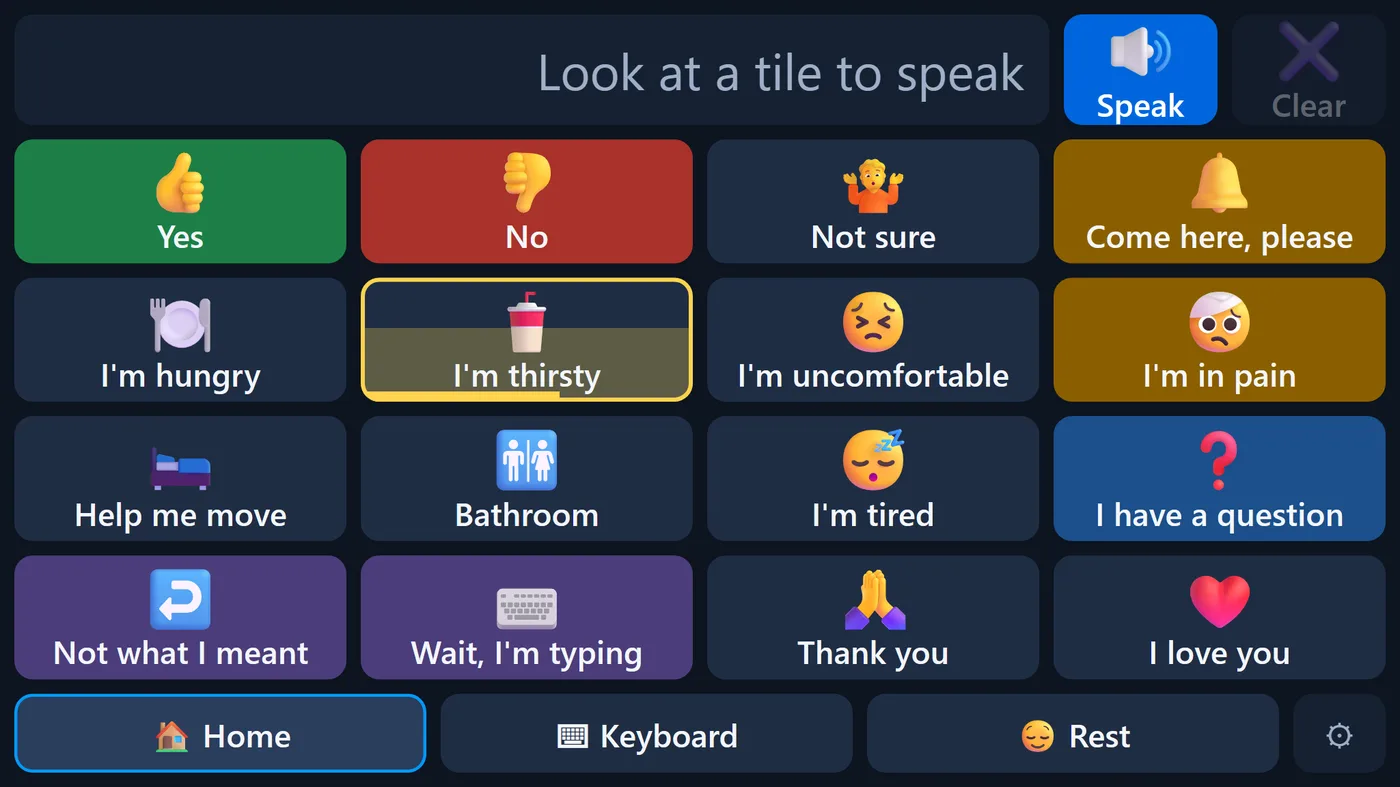
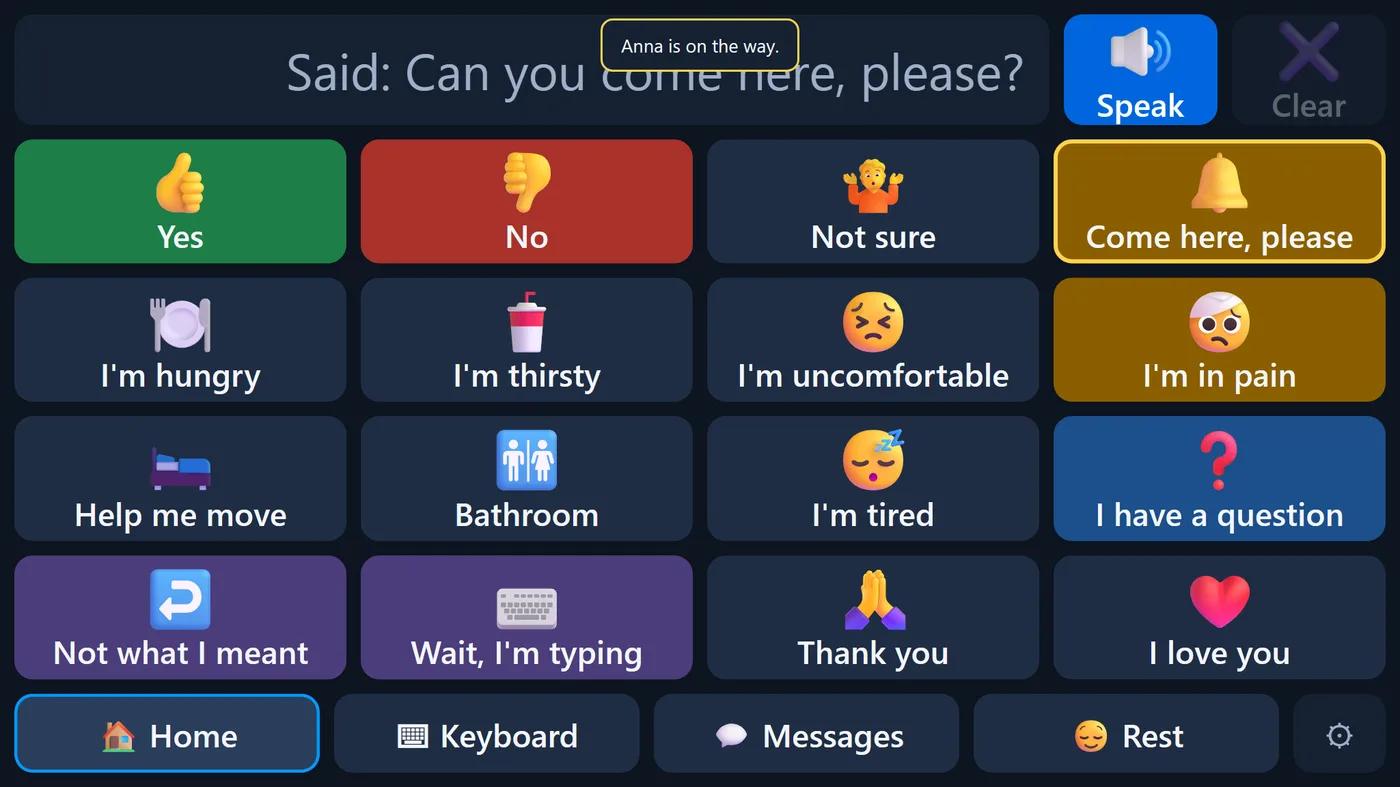
Resting the eyes (or the pointer) on a tile fills it, then it is chosen and spoken. The time it takes is the Look time, set in ⚙.
The home board. A resting look fills the tile (here "I'm thirsty").
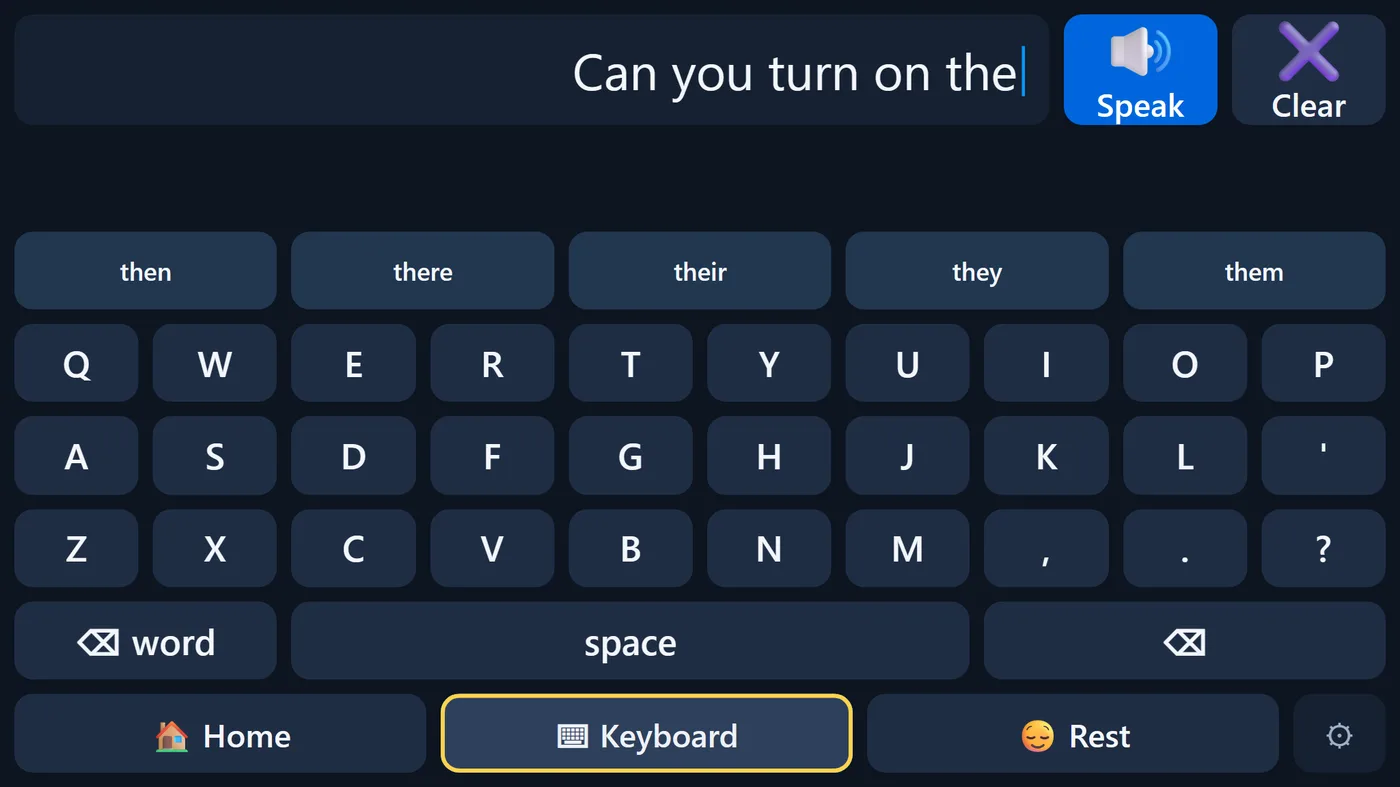
Keyboard: spell anything. Word predictions and suggested sentences appear above the letters; nothing is spoken until it is chosen.
Speak says what is in the message bar, then clears it. On an empty bar, Speak repeats the last message.
Clear empties the bar; right after, it becomes Undo.
Rest pauses the board so looking around selects nothing. Look at Wake up to continue.
The keyboard with word predictions.
Eye trackers and calibration
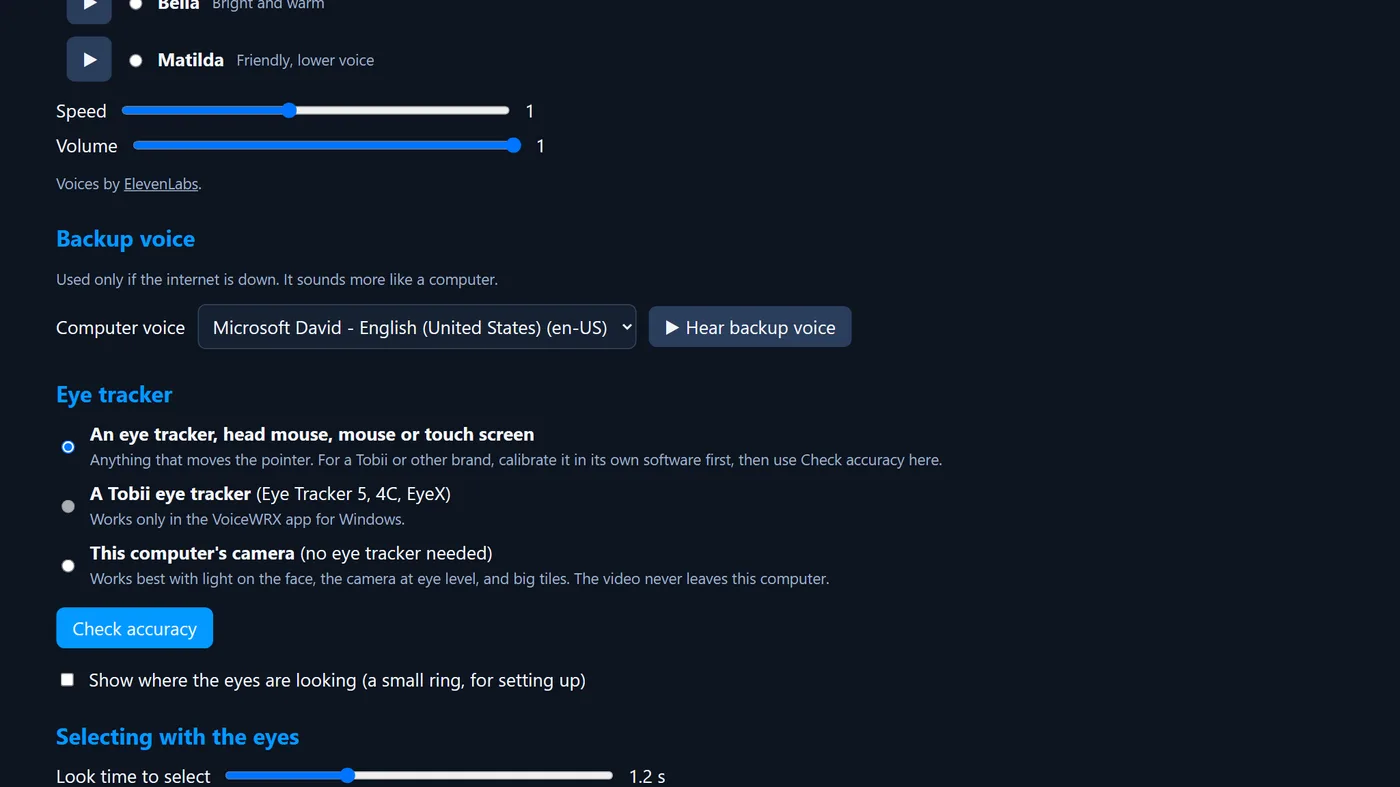
Choose the input in ⚙ → Eye tracker on the board.
⚙ on the board: voice and eye tracker settings.
A Tobii eye tracker (most accurate)
Install Tobii Experience from Tobii and plug in the tracker.
In the VoiceWRX app, choose A Tobii eye tracker. A small "● Tobii" badge appears; leave it on screen.
Use Set up the Tobii screen once, then Calibrate the Tobii with the person in their usual position. VoiceWRX comes back by itself when it finishes.
Use Check accuracy to fine-tune, and the Steadiness slider if the ring is jumpy.
Calibrating with your own eyes replaces theirs. To test it yourself, use Calibrate someone else (guest).
A Gazepoint eye tracker (GP3, GP3 HD)
Install Gazepoint Control from Gazepoint, plug in the tracker, and start Gazepoint Control. Leave it running; VoiceWRX reads the eye tracker through it.
In the VoiceWRX app, open ⚙ and choose A Gazepoint eye tracker. The status line under it should say Gazepoint working. If it says Gazepoint Control is not running, start it from the Start menu; VoiceWRX connects by itself within a few seconds.
With the person in their usual position, about 25 inches from the tracker, use Calibrate the Gazepoint. Gazepoint shows its own dots, then VoiceWRX comes back and shows the result.
Use Check accuracy to fine-tune, and the Steadiness slider if the ring is jumpy.
With two screens, the board moves itself to the screen the Gazepoint tracks. You can change it in ⚙ → Screen.
The computer's camera (nothing to buy)
Choose This computer's camera, then Calibrate the camera and look at each dot until it disappears.
Light on the face (not behind), the camera at eye level, and fewer, larger tiles help a lot.
If the ring drifts in one direction later, use Re-center (1 dot) instead of a full calibration.
Mouse, head mouse or touch
Choose An eye tracker, head mouse, mouse or touch screen. Anything that moves the pointer works.
Turn on Show where the eyes are looking to see a small ring while setting up.
Help alerts
Looking at Come here, please reaches the caregivers, and keeps trying until someone answers. When someone answers, the board shows and says who is coming.
After a caregiver answers: "Anna is on the way."
Phone calls and texts
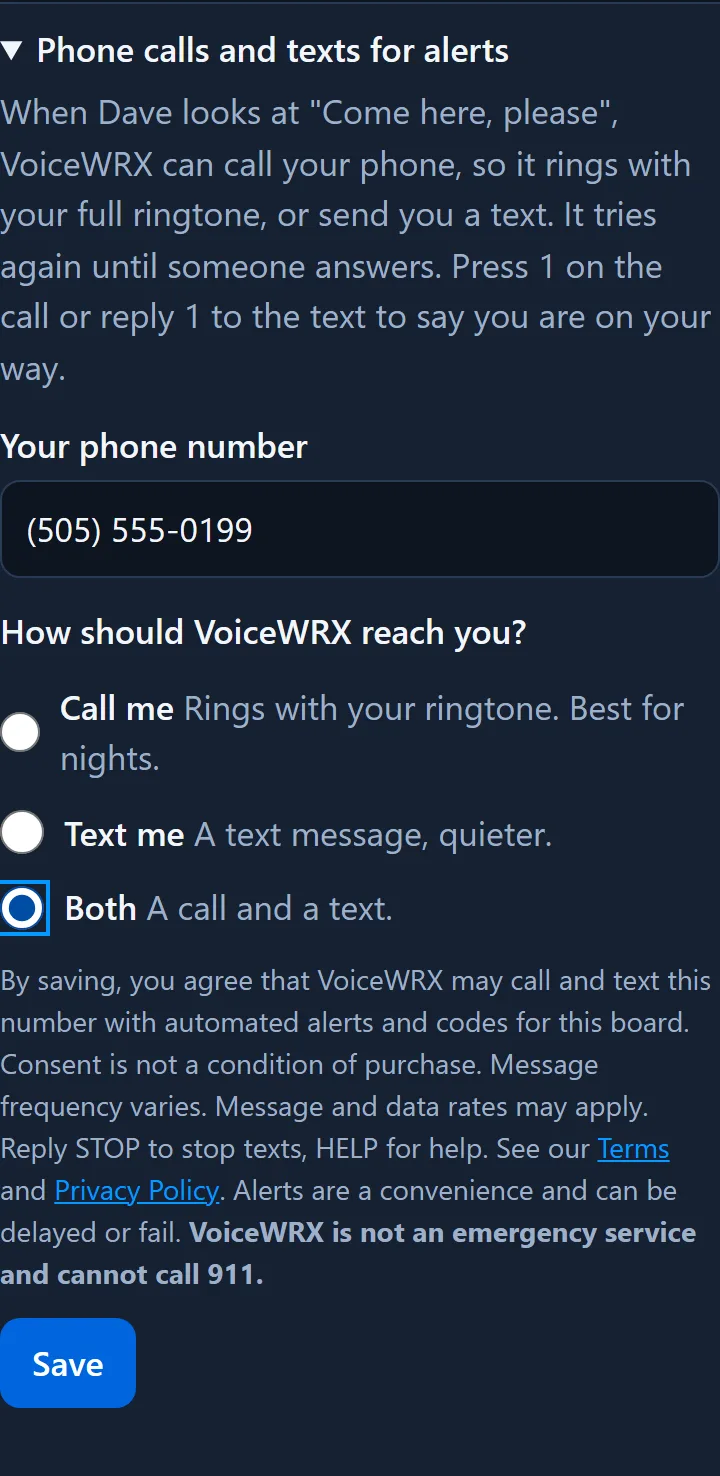
On the caregiver site, open Phone calls and texts for alerts on the board card.
Enter your phone number and choose Call me, Text me or Both, then Save.
Enter the 6-digit code VoiceWRX calls or texts you, then use Test it.
When an alert comes: press 1 on the call, or reply 1 to the text, to say you are on your way.
Choosing how VoiceWRX reaches you.
Make it ring even on silent (iPhone): save the board's number as a contact, open it, tap Edit → Ringtone (or Text Tone) and turn on Emergency Bypass. On Android, add it to favorites and let favorites through Do Not Disturb.
Phone notifications
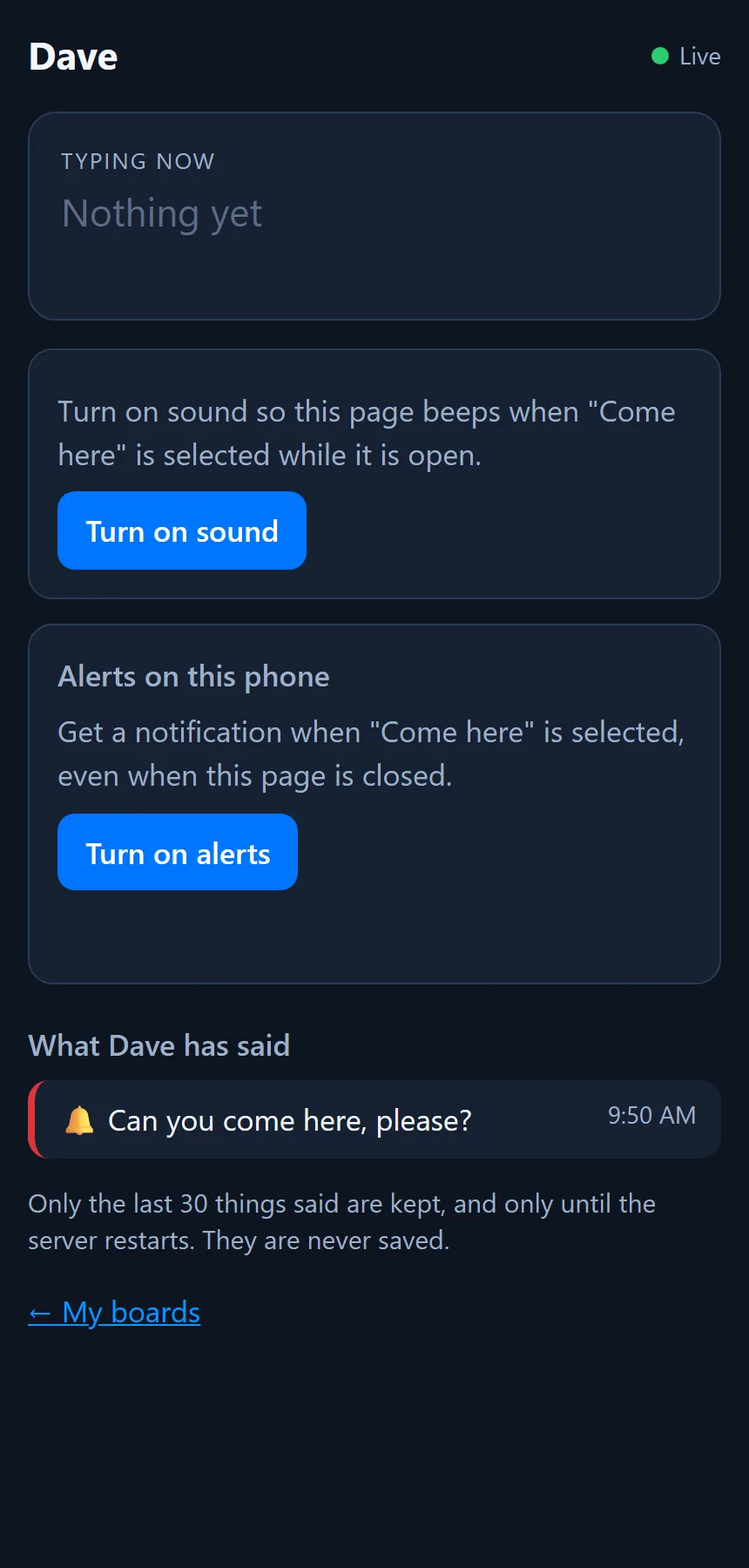
On your phone, sign in at voicewrx.com, open Live view and alerts, and tap Turn on alerts.
On iPhone, first add VoiceWRX to the Home Screen (Share → Add to Home Screen) and open it from there.
Tap I'm on my way on the notification to answer.
Live view and alerts on a phone.
Texting
Texting is off until the board's owner turns it on. Then a 💬 Messages button appears on the board.
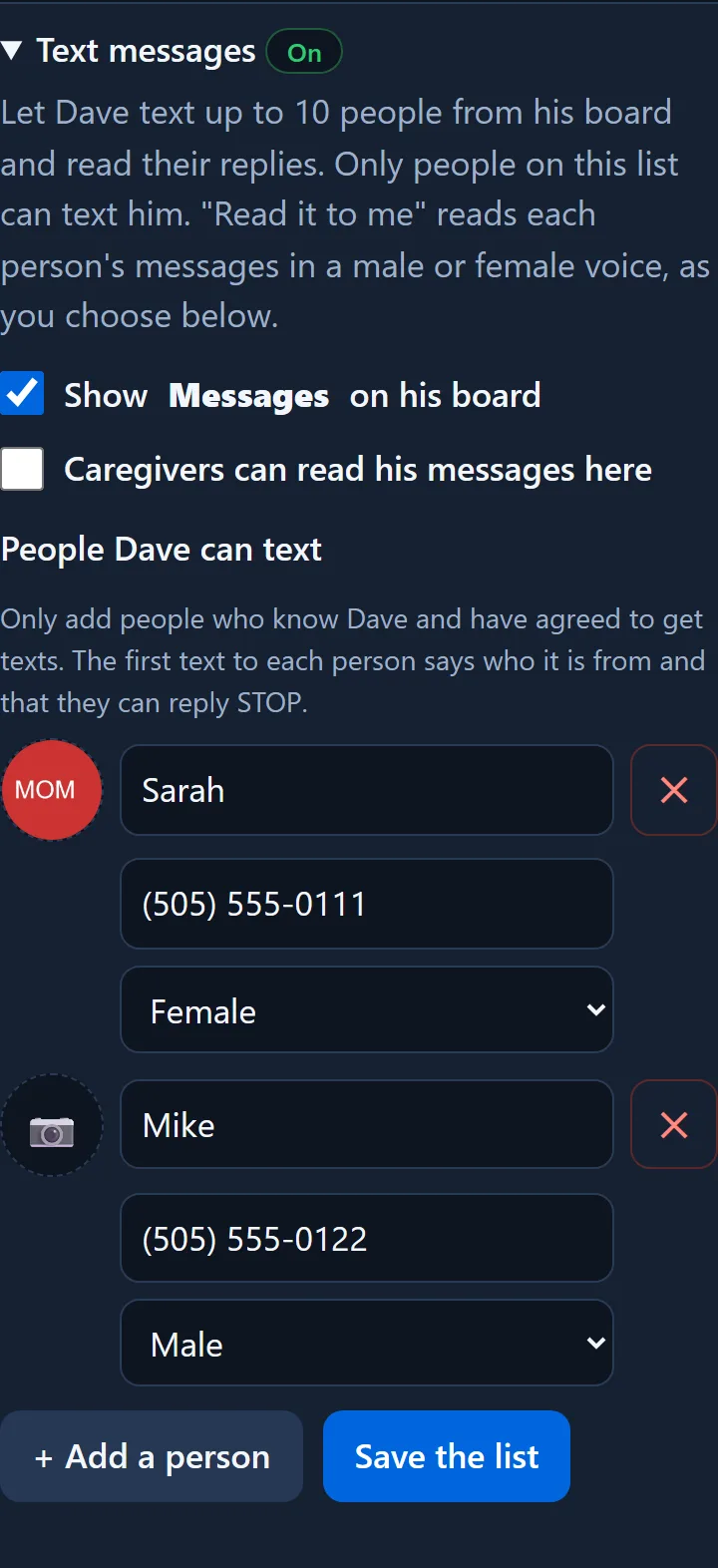
On the caregiver site, open Text messages, check Show Messages on his board (or her, or their), and add up to 10 people with a name, phone number, a photo if you like, and Female or Male for the voice that reads their messages.
Only add people who have agreed to get texts. The first text to each person introduces the sender and explains how to stop.
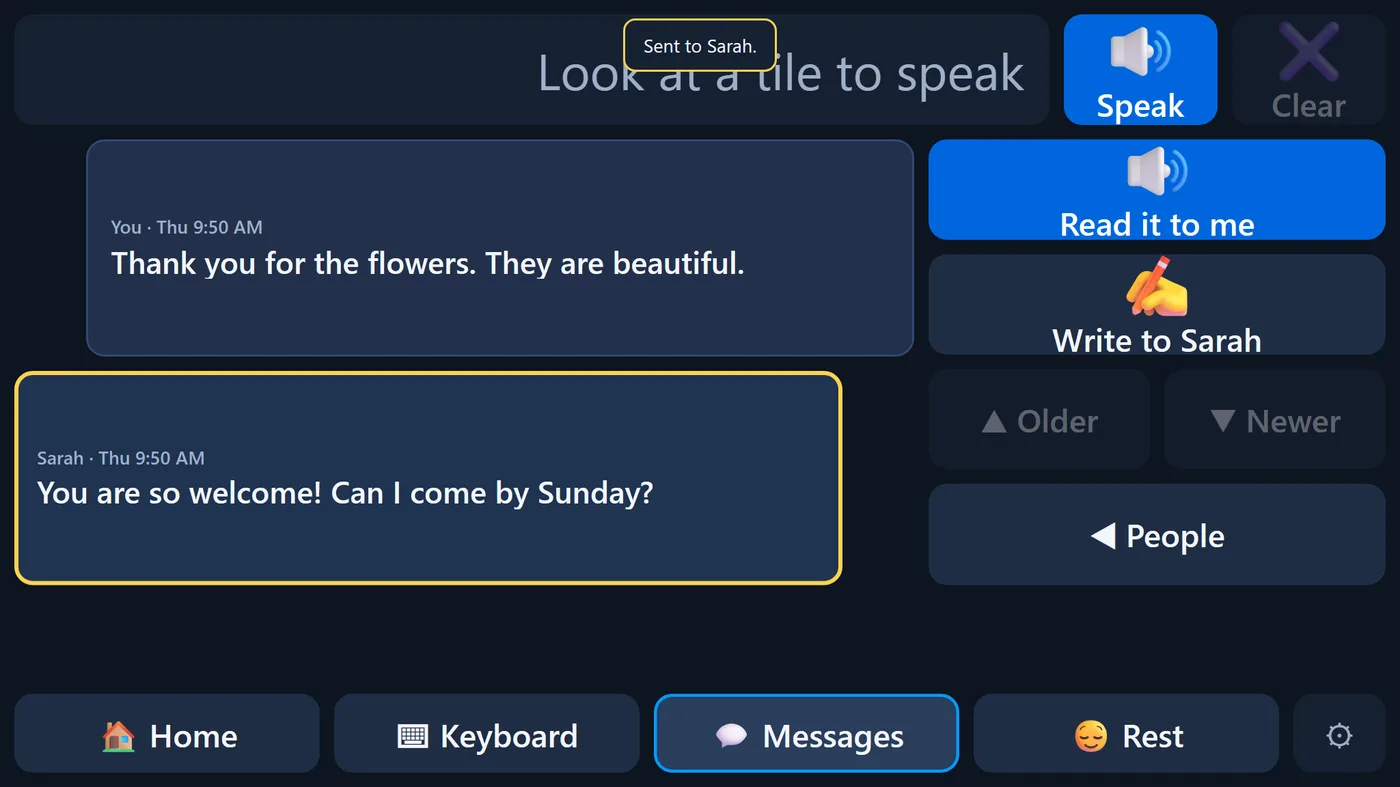
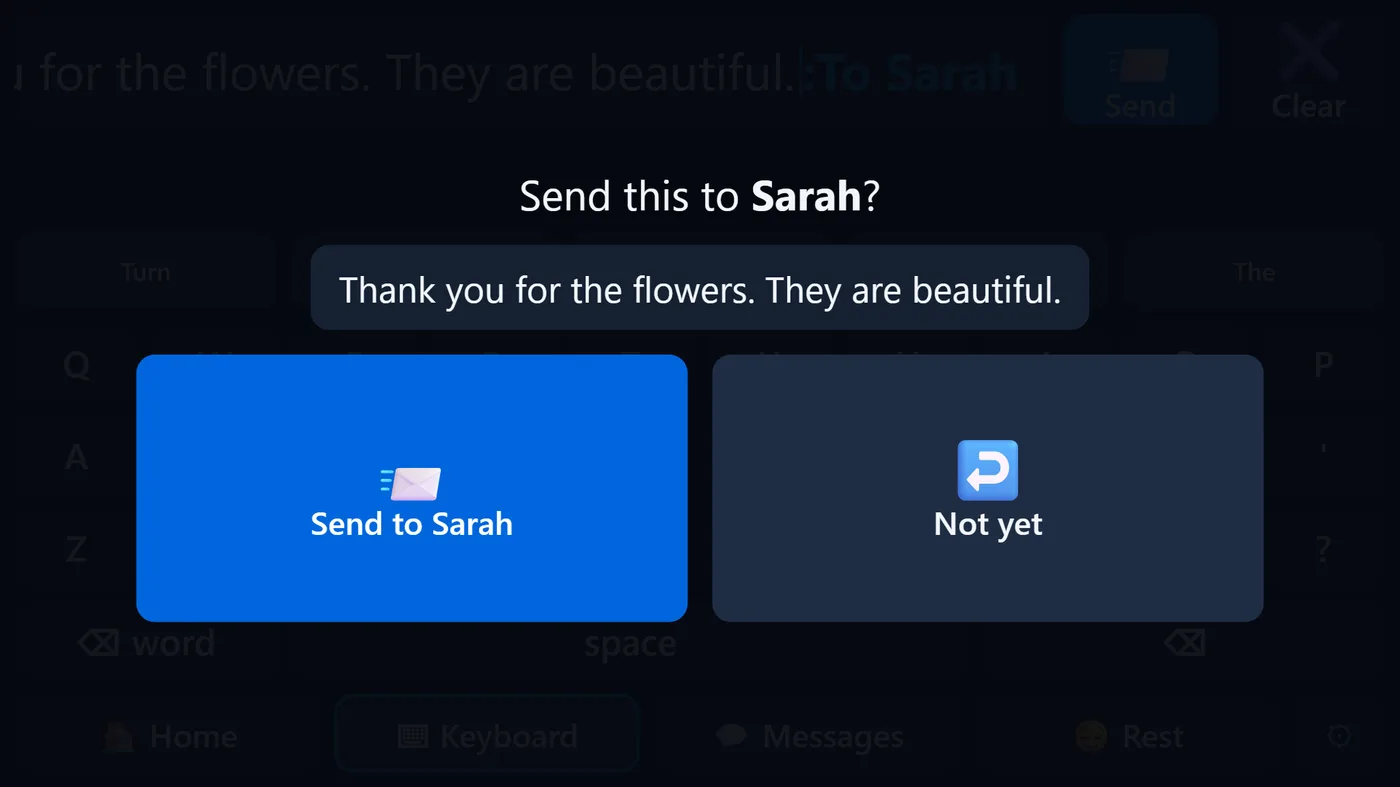
On the board: pick a person, look at Write to …, type, then Send and confirm.
Read it to me speaks their latest message in a voice that suits them. Looking at a message reads that one; photos open full screen.
Setting up who they can text.A conversation on the board.Nothing is sent without this check.
Can caregivers read the messages?
Only if the board's owner turns on Caregivers can read … messages here. It is off by default.
The caregiver site
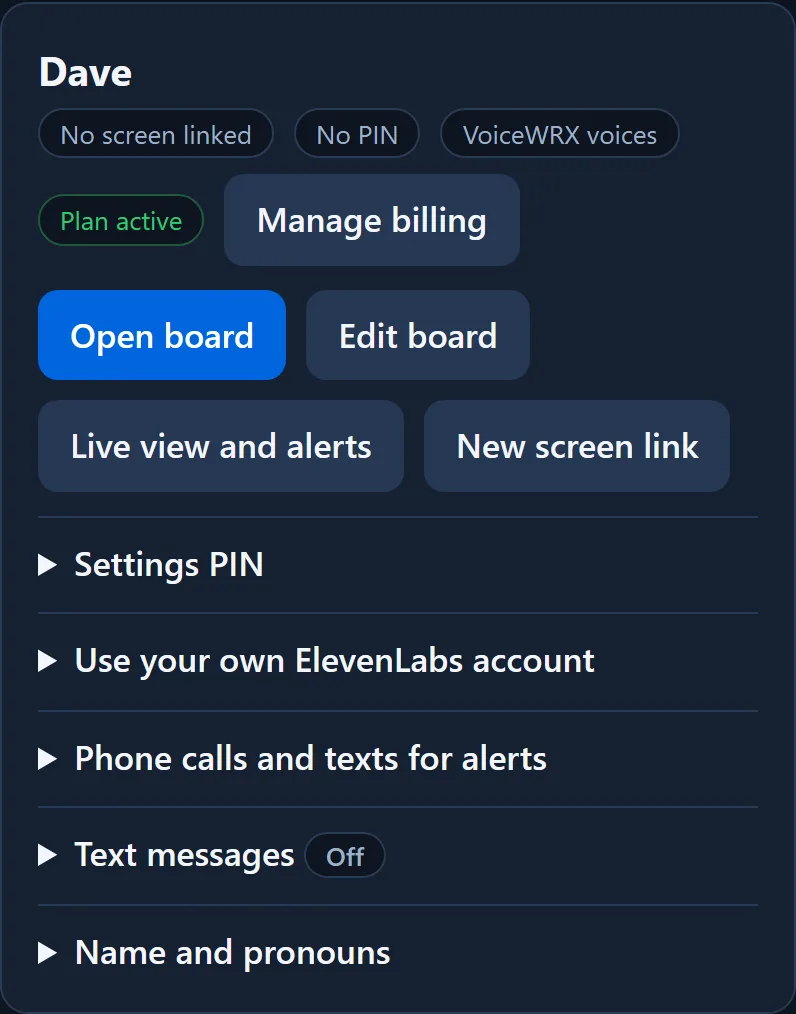
Each board has a card with everything for that board.
Edit board: tiles, words, pictures (a big library, or your own photos), colors, voice, look time and more. Changes reach their screen in seconds.
Live view and alerts: see what is said as it happens, and turn on phone alerts.
Settings PIN: with a PIN, the ⚙ button on their screen asks for it, so visitors cannot change the board.
Name and pronouns: so suggestions and the board speak about them the right way.
On your phone: scan the code on the caregiver site to sign in on your phone and add VoiceWRX to your Home Screen.
Plans and billing
One plan: $69 a month per board, everything included. Set up the board first; start the plan when you are ready to link their screen.
Have a code? Enter it on the payment page.
Manage billing on the board card changes your card, shows invoices, or cancels. Cancelling takes effect at the end of the month you have paid for.
If a plan ends, the board keeps speaking with the computer's voice and phone notifications continue; the human voices, AI suggestions, texting and alert calls and texts stop.
Starting the plan.
Fixing problems
The Tobii does not move the ring.
Make sure you are in the VoiceWRX app (not a browser), A Tobii eye tracker is chosen, and the small "● Tobii" badge is on screen. Check the Tobii status line in ⚙. Then use Set up the Tobii screen and Calibrate the Tobii.
The ring is jumpy or lands in the wrong place.
Raise Steadiness in ⚙, then Check accuracy. For the camera, add light in front of the face, then calibrate again or use Re-center (1 dot).
There is no sound.
Check the computer's volume and the Volume slider in ⚙. In a browser, click Start once; the app does not need this. If the internet is down, the backup computer voice is used.
I did not get an alert.
Use Test it (calls and texts) or Send a test alert (notifications). Check Do Not Disturb, Focus and battery-saving settings, and that the board has a plan. Remember alerts can fail; VoiceWRX is not an emergency service.
"This browser cannot receive alerts" or "push service not available".
That browser has no notification service (the bedside app and some browsers such as Brave). Turn alerts on from your phone instead, or use alert calls and texts.
The screen says "Not linked" or "needs a VoiceWRX plan".
Start the plan on the caregiver site, then open the screen link again on that computer.
Still stuck?
Use Report a problem below, or ⚙ → Report a problem on the board, which sends us the technical details automatically.
Report a problem or suggest a feature
We read every message. On the board, ⚙ → Report a problem also sends the eye tracker and app details that help us fix things. You can also email support@voicewrx.com.
No help topics match. Try another word, or ask us.